Electronic Signatures
P2i contracts are able to be electronically signed (eSign) via Docusign.
Warning Once eSign is applied to an active contract, this decision is non-reversible (i.e. it applies also to the contract variation process).
Docusign is an e-signature format which uses AES 256-bit encryption. Docusign uses Public Key Infrastructure (PKI) to ensure secure digital signing with each document receiving its own certificate of authenticity. All data access and transfer activities within Docusign use secure protocols such as HTTPS, SSL, SSH, IPsec, and SFTP.
Warning The maximum number of files (including annexes and the MCD) submitted to Docusign to be eSigned is 65. This is due to Docusign's duplication of files as part of its functionality.
 Points for consideration in a decision to apply electronic signatures to a contract.
-
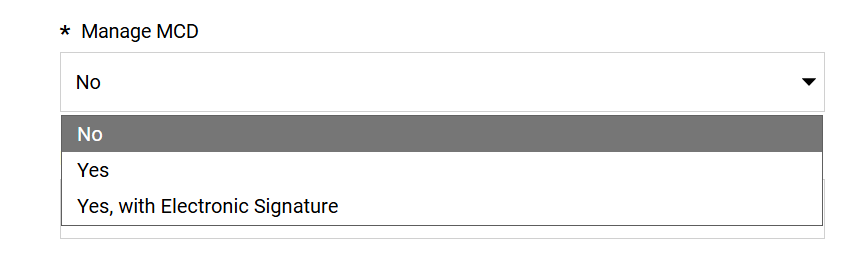
P2i Senior User ensures the contract's Details tab> Settings page > Manage MCD field has the value of Yes, with Electronic Signature” - refer to Manage MCD
Warning When Yes with Electronic Signature is selected, the Contents Management tab > Additional Information page > Type of Signature field MUST contain the value of Electronic Signatures (i.e. the two fields and their values MUST align)
-
Agreement settings for the MCD
Master Contract Document must be configured. (refer to Electronic Signature Settings subsection) -
A contract proposal must be created and approved - eventually involving eSign by the Main Contractor (i.e. the Funded Organisation).
-
determine if annexes are applicable for the eSigned MCD
-
the MCD to be eSigned will become locked, meaning other documents cannot be easily bundled with the MCD to be signed
-
annexes allows upload of additional files to form part of the total contract package being signed (refer to Decision: contract DOES involve electronic signature (with optional annexes))
-
when annexes are included and managed as part of the MCD, each annex must be eSigned
Note Annex files must be valid types supported by Docusign eSignature
TABLE: Valid file type and the file extensions Document
.doc, .docm, .docx, .dot, .dotm, .dotx, .htm, .html, .msg, .pdf, .rtf, .txt, .wpd, .xhtml, .xps
Image
.bmp, .gif, .heic, .jpg, .jpeg, .png, .tif, .tiff
Presentation
.pot, .potx, .pps, .ppt, .pptm, .pptx
Spreadsheet
.csv, .xls, .xlsm, .xlsx
Tip Docusign does not support files with password security enabled. To send a file with password security, remove the security setting before uploading the file as an annex.
-
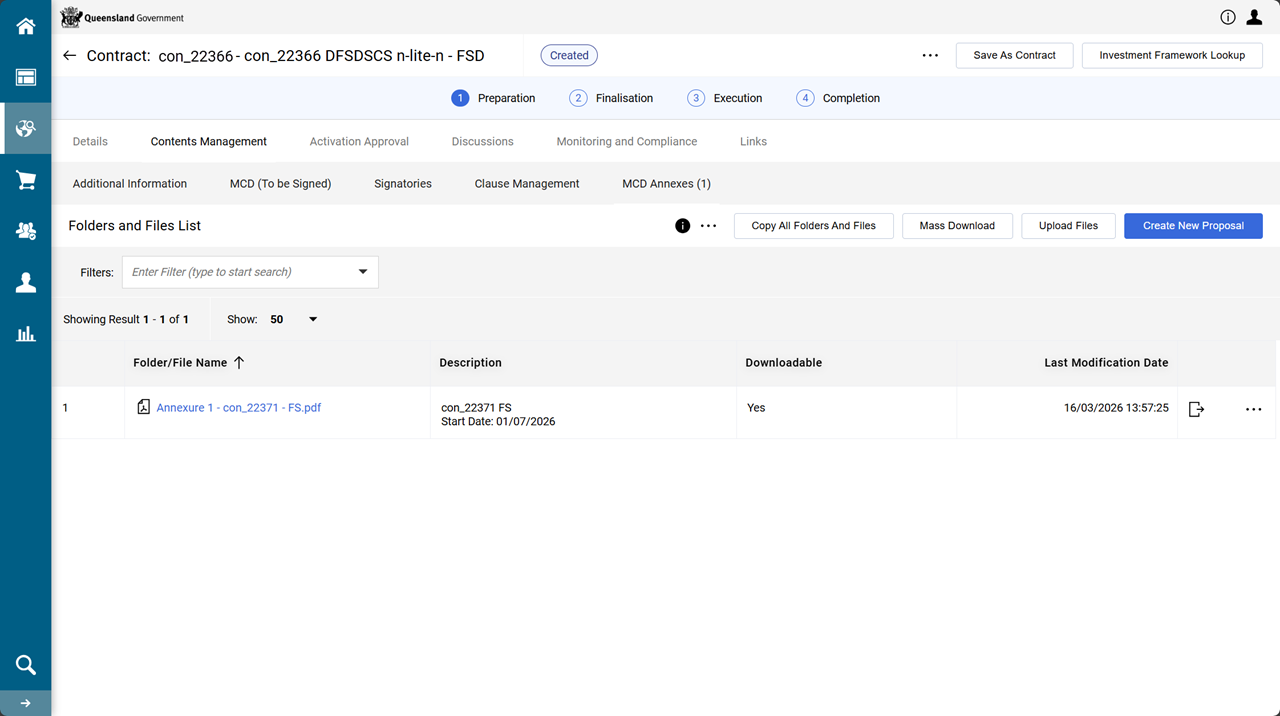
annexes are located in the contract's Contents Management tab > MCD Annexes page
-
-
The P2i Signature block will retain current wording to allow the signatories to signify to what they are agreeing.
-
Signatories must be added to the contract.
The P2i Senior User or P2i Contract Officer enters the email address and mobile number of the signatories to ensure the correct person will electronically sign the contract (MCD).
Note This process requires due diligence when assigning signatories to the contract.
Signatories (create, sort, edit, delete, deactivate, reactivate)
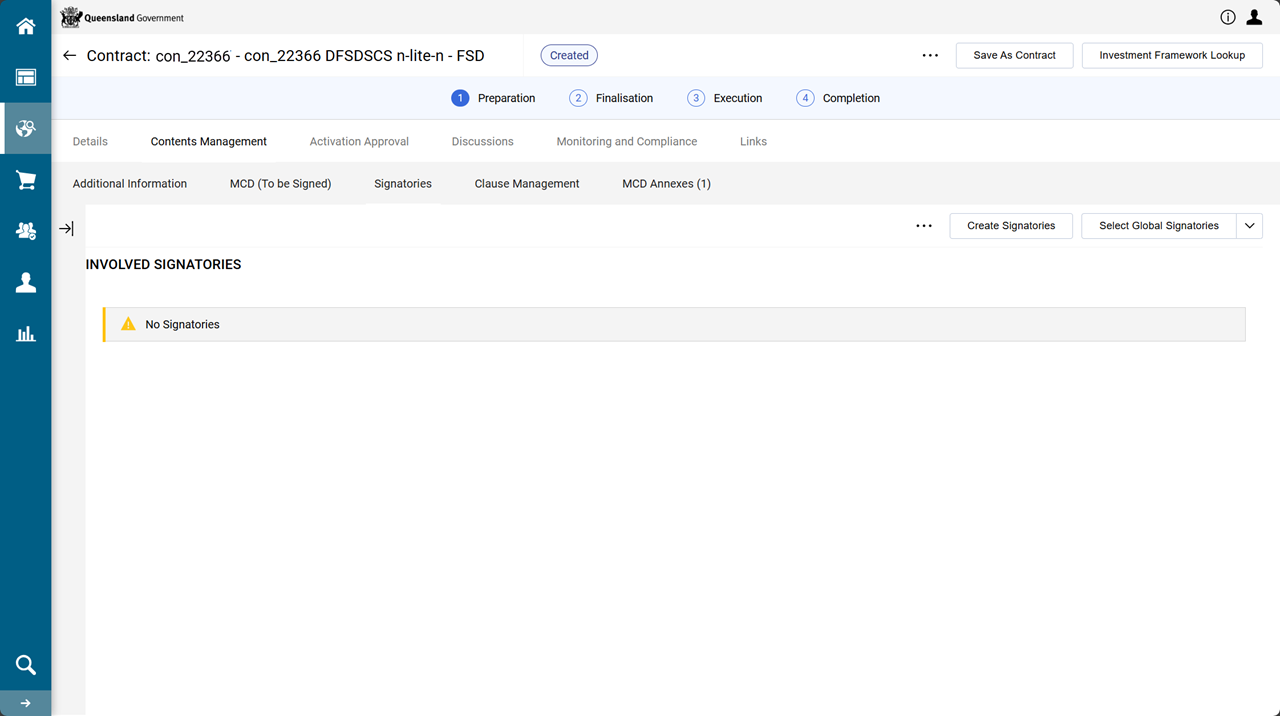
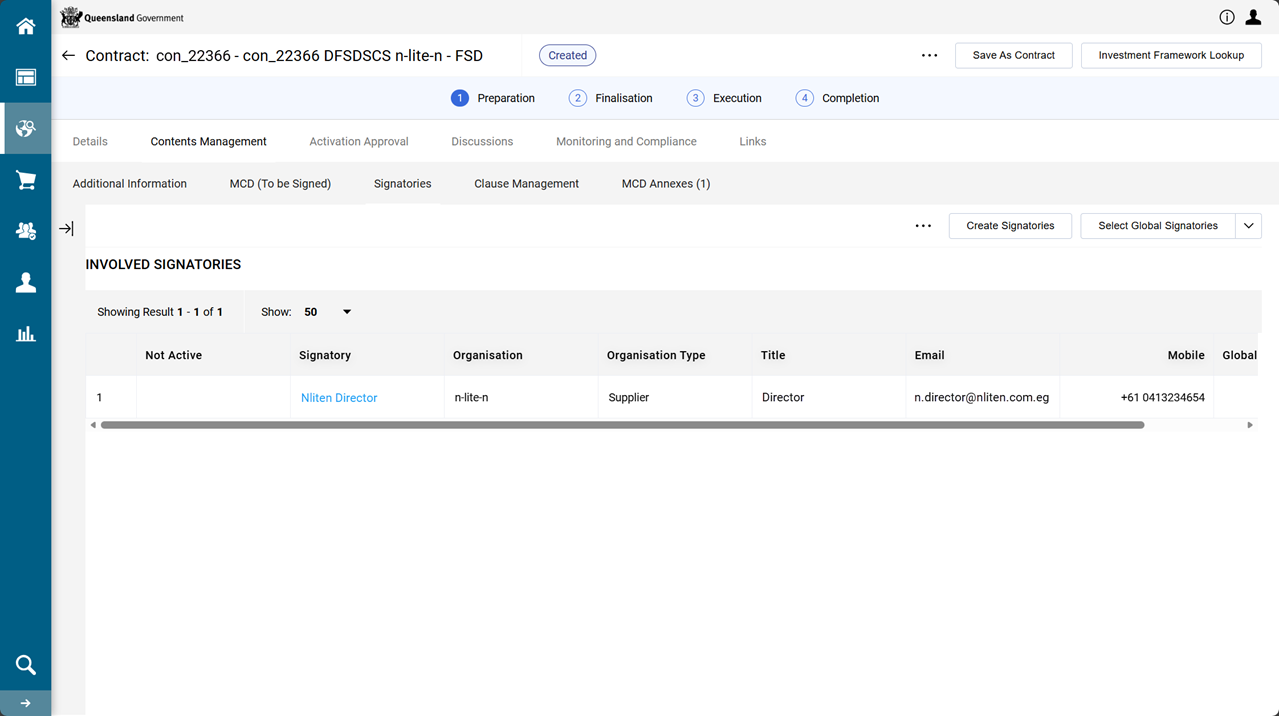
The Contents Management tab > Signatories page enables the management of the details of the authorised people who will eSign the contract.
Note This page is available when Yes, with Electronic Signature is selected in the Details tab > Settings page > Manage MCD field (refer Manage MCD).
-
There can be as many buyer/supplier signatories as needed for the purpose of eSigning a contract.
-
The signatory does not have to have access to P2i (e.g. a Funded Organisation user or department user who is not a registered user in P2i can be defined as a Signatory in the contract by providing their contact details).
-
The Email is the destination where the link to the contract to be signed is sent.
-
The Mobile is the phone number where an SMS confirming the signatory’s identity will be sent.
-
When the Settings tab > Agreement Settings page > Electronic Signature Route field has the value of Sequential (refer to Electronic Signature Settings subsection), the name at the top of the signatory list will be the first to sign .
Create a Signatories
-
From the Contents Management tab > Signatories page, click Create Signatories.
-
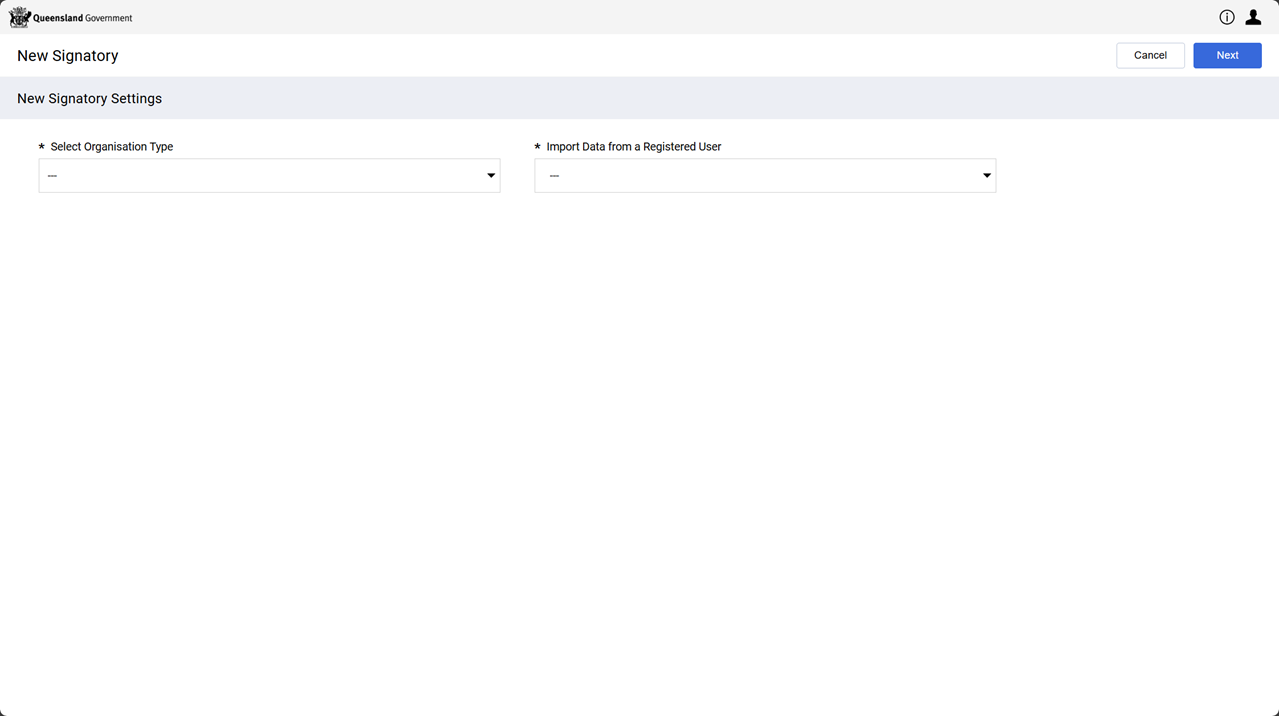
Configure the fields:
-
Select option from the Select Organisation Type dropdown list.
Warning
-
Buyer is the Department.
-
Supplier is the Funded Organisation.
-
-
Select option from Import Data from a Registered User
Yes to choose a registered P2i user as a signatory
No to create a signatory.
-
-
Click Next.
The next screen to display is dependant upon values selected on the previous screen.
Example
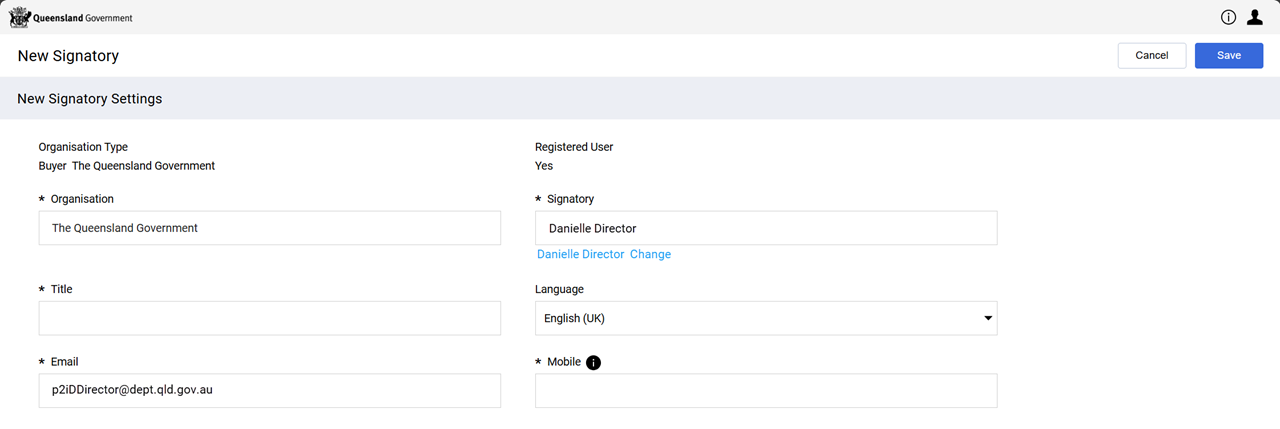
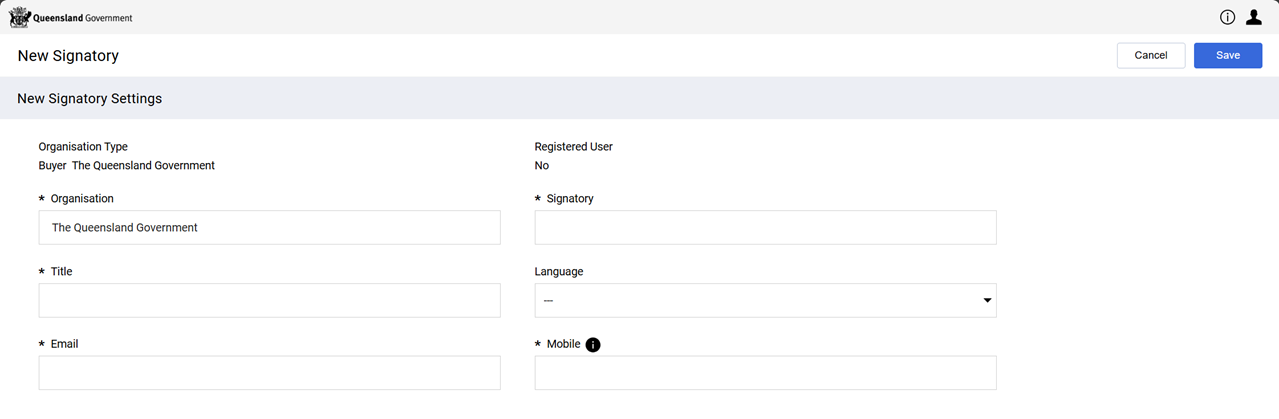
Select Organisation Type is the value Buyer
-
Import Data from a Registered User is the value Yes
Select a Departmental user.
-
Enter a value in the Quick Selection by Name field. Select a name.
-
Alternatively, click Select with Search Criteria to search for a user. Select a name.
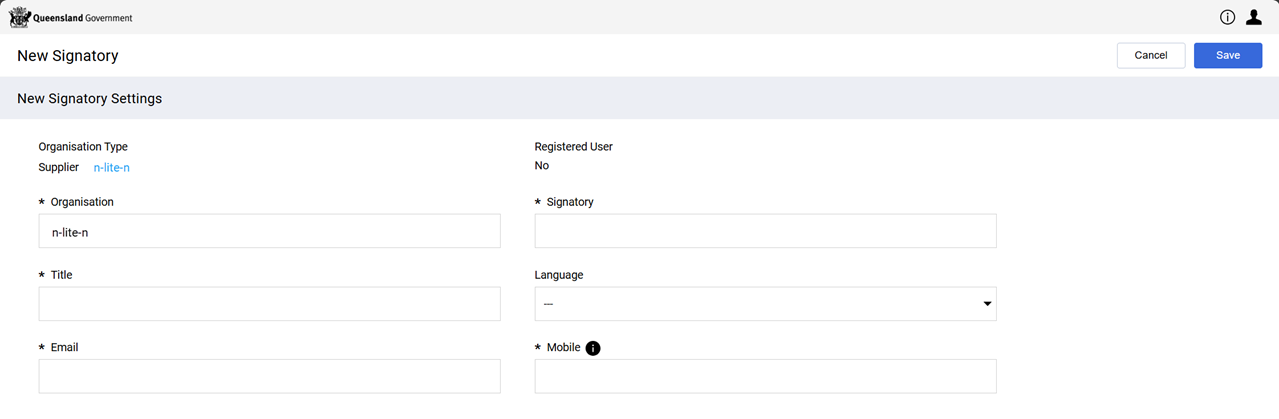
The New Signatory Settings section displays with the Organisation name, Signatory selected with their provided Email details.
-
-
Import Data from a Registered User is the value No
The New Signatory Settings section displays with the Organisation pre-populated.
Example
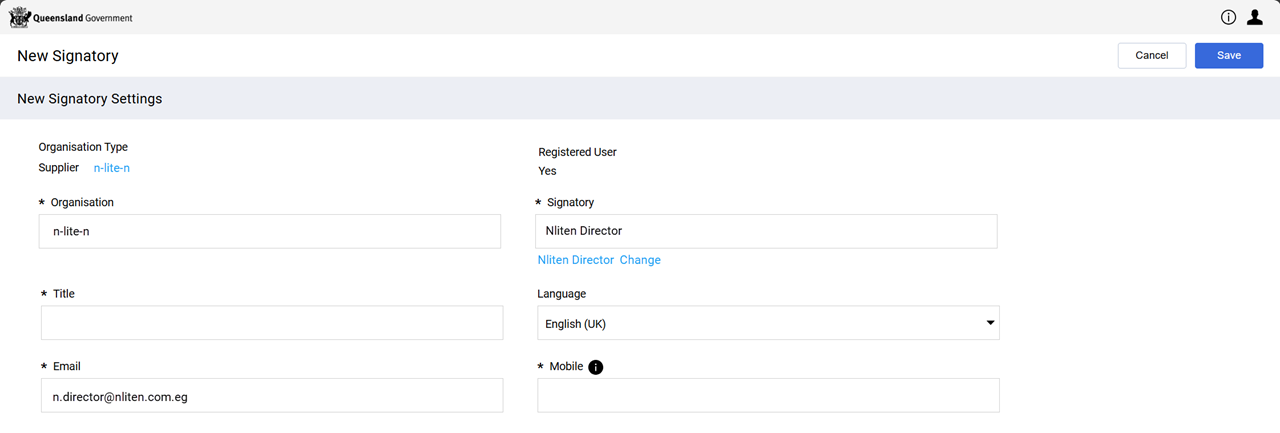
Select Organisation Type is the value Supplier
-
Import Data from a Registered User is the value Yes
Select a Funded Organisation user.
-
Enter a value in the Quick Selection by Name field. Select a name.
-
Alternatively, click Select with Search Criteria to search for a user. Select a name.
All fields defaults to Funded Organisation's Organisation name, Signatory selected with their provided Email details.
-
-
Import Data from a Registered Useris the value No
The New Signatory Settings section displays with the Organisation pre-populated.
-
-
Enter details into fields marked with a *. These are mandatory fields.
-
Click Save.
Sort Signatories
Signatories display in a contract in the same order they display on the Signatories page.
When the Settings tab > Agreement Settings page > Electronic Signature Route field has the value of Sequential, the name at the top of the signatory list will be the first to sign.
-
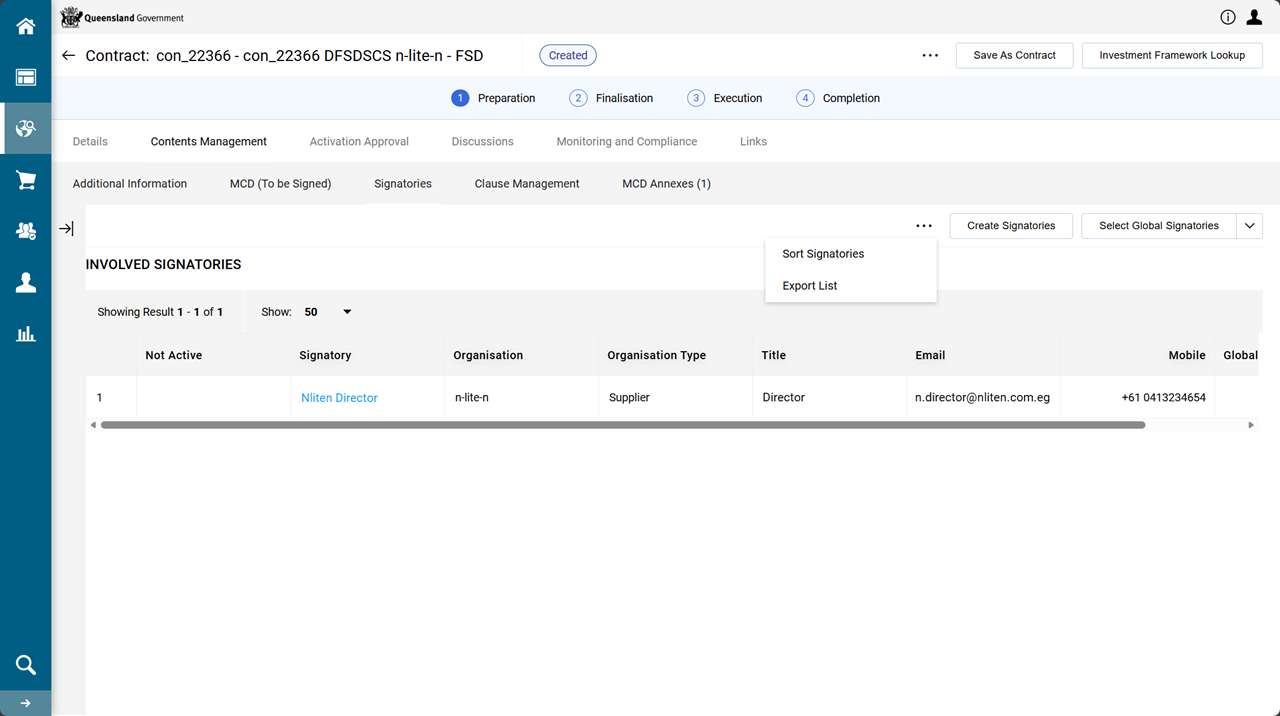
From the Contents Management tab > Signatories page, click the elipsis (...).
-
Click Sort Signatories.
-
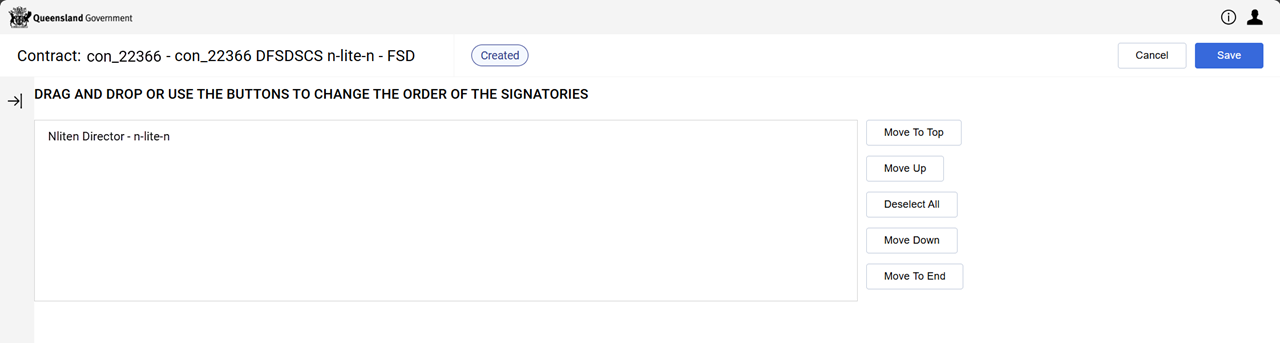
Click a signatory and take one of the following actions:
-
Drag the signatory to the appropriate position in the list.
-
Use Move to Top, Move Up, Move Down and Move to End) to move the signatory to the appropriate position.
-
-
Click Save.
Edit, Delete, Deactivate or Reactivate a Signatory
Signatories can be edited, deleted, deactivated or reactivated for a contract.
Note Deactivating means that user will not be selectable if the contract is used to create a new contract, they remain visible in the existing contract or template. They will not be engaged in the next electronic signature process.
Example A deactivated signatory has the Not Active field ticked.
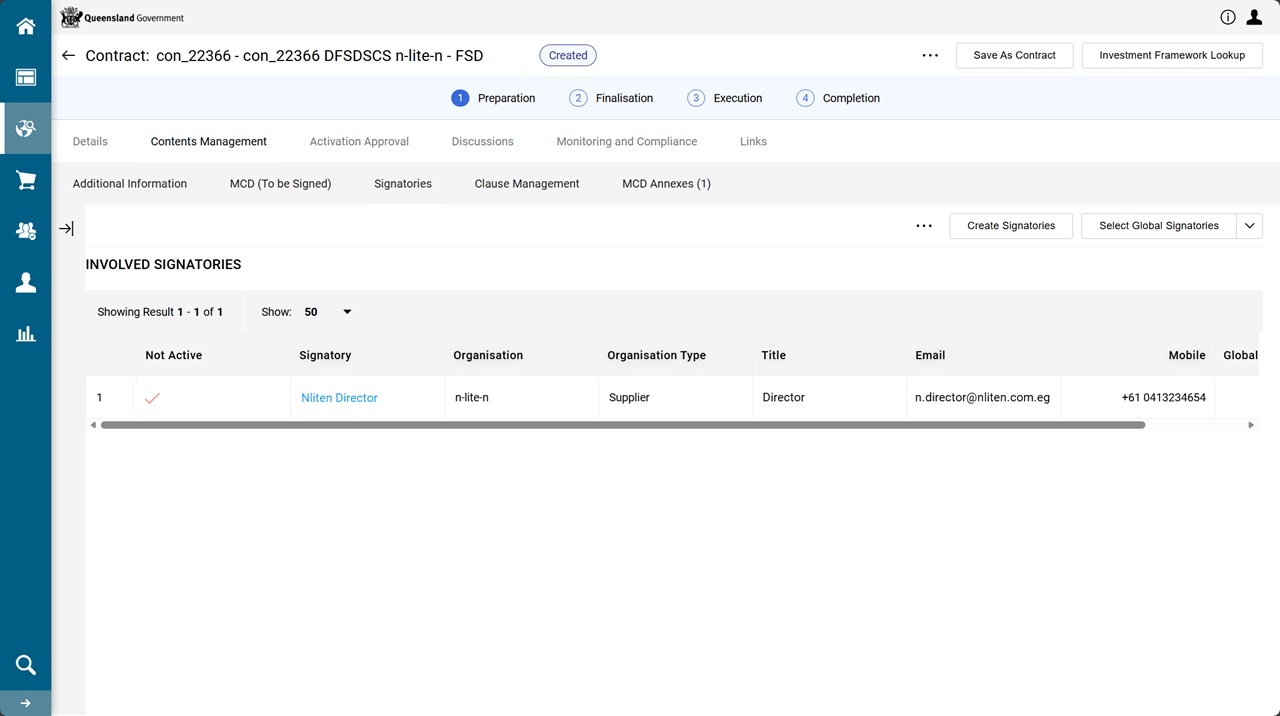
-
From the Contents Management tab > Signatories page, click the (hyperlinked) signatory name in the list.
-
Take one of the following actions:
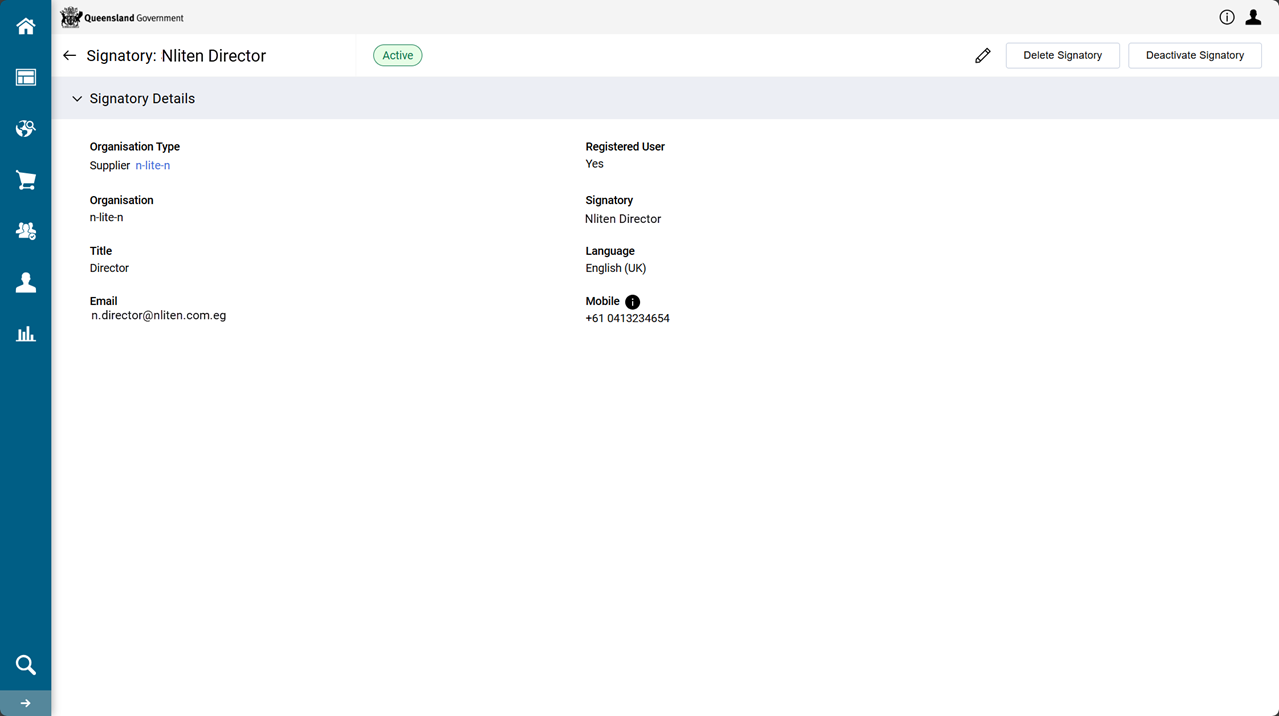
-
Edit - Click
 . The fields become active for editing. Make edits as necessary. Click Save.
 -
Delete - Click Delete Signatory.
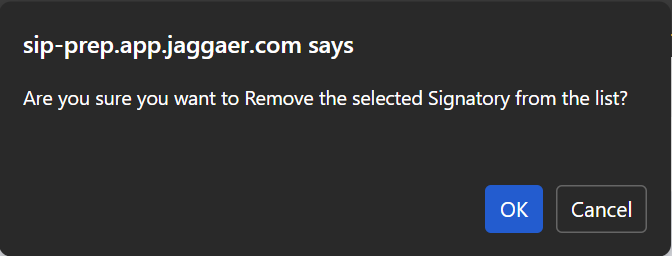
Click Ok.
-
Deactivate - Click Deactivate Signatory.
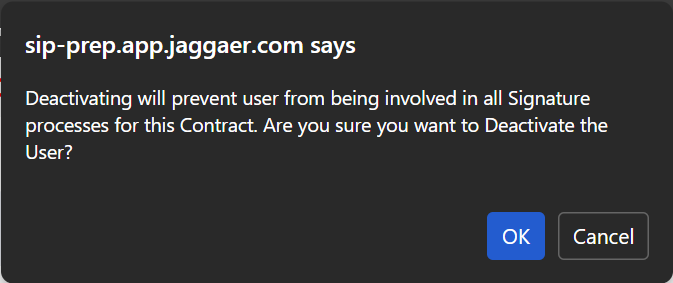
Click Ok.
-
Activate - Click Activate Signatory.
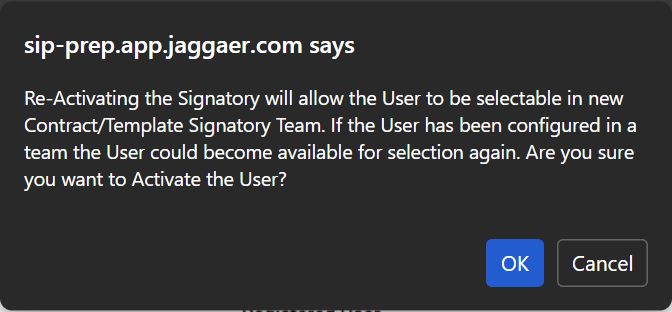
Click Ok.
-
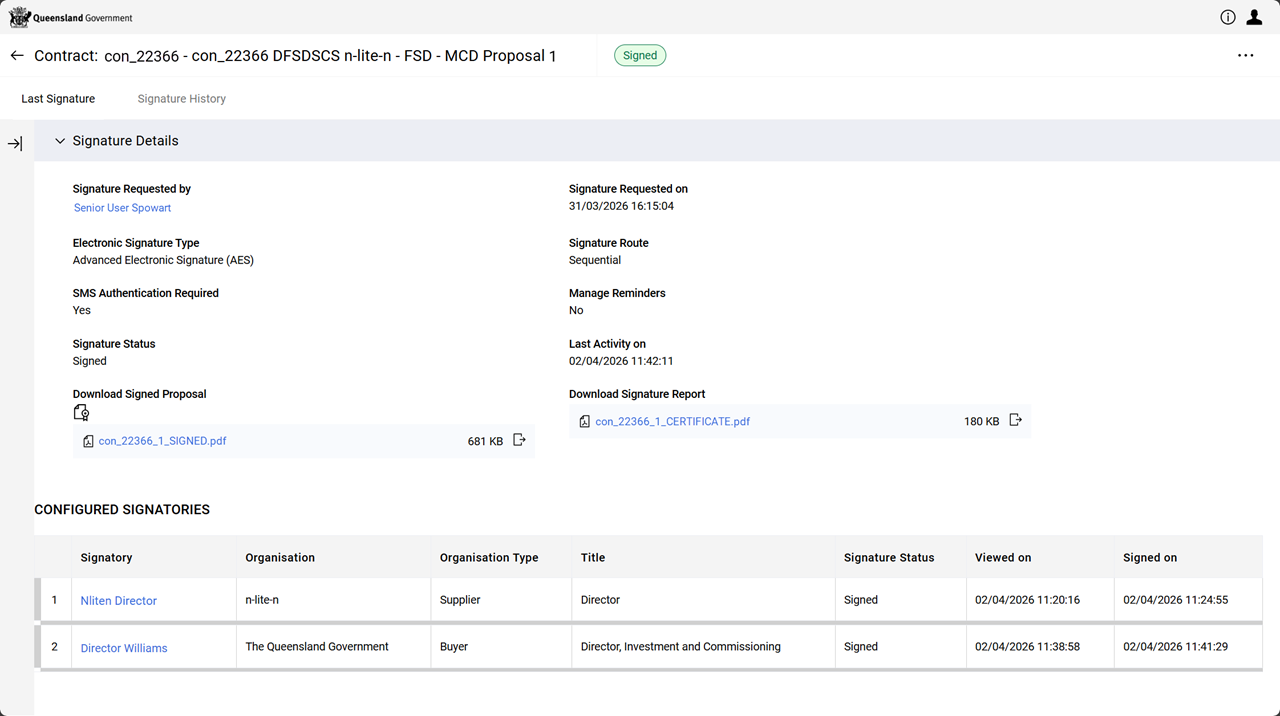
View the signature approval status
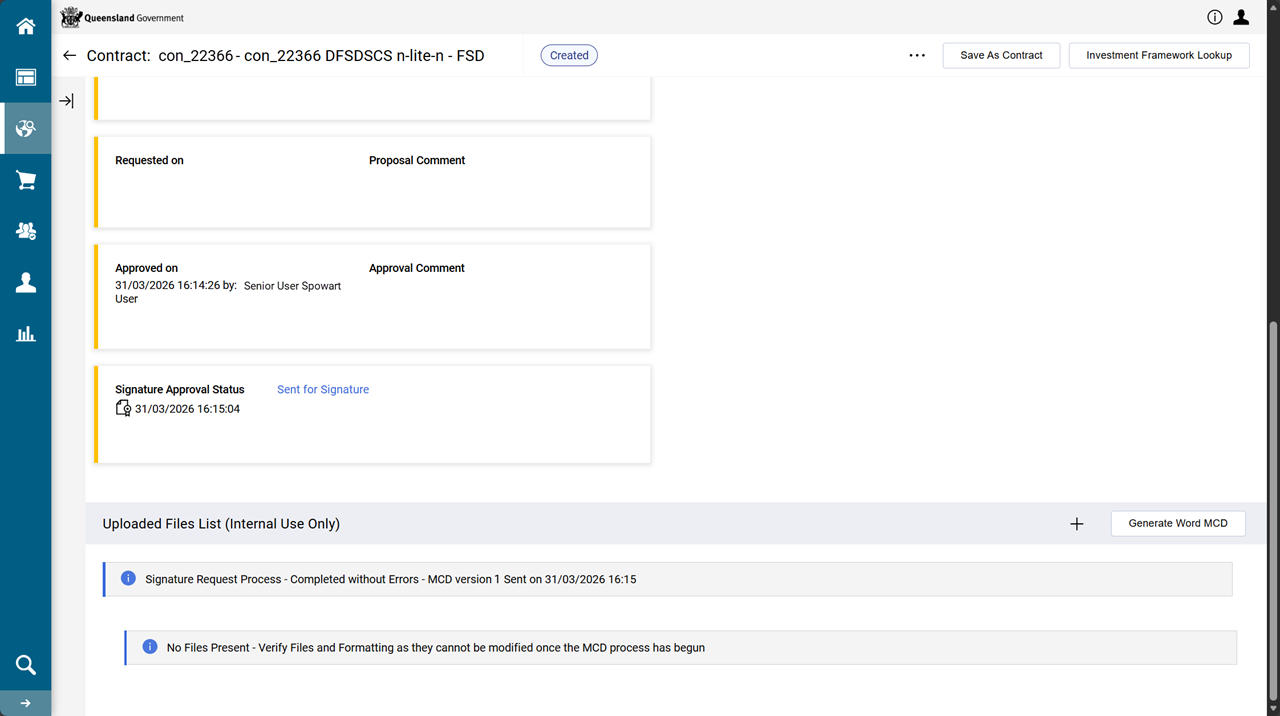
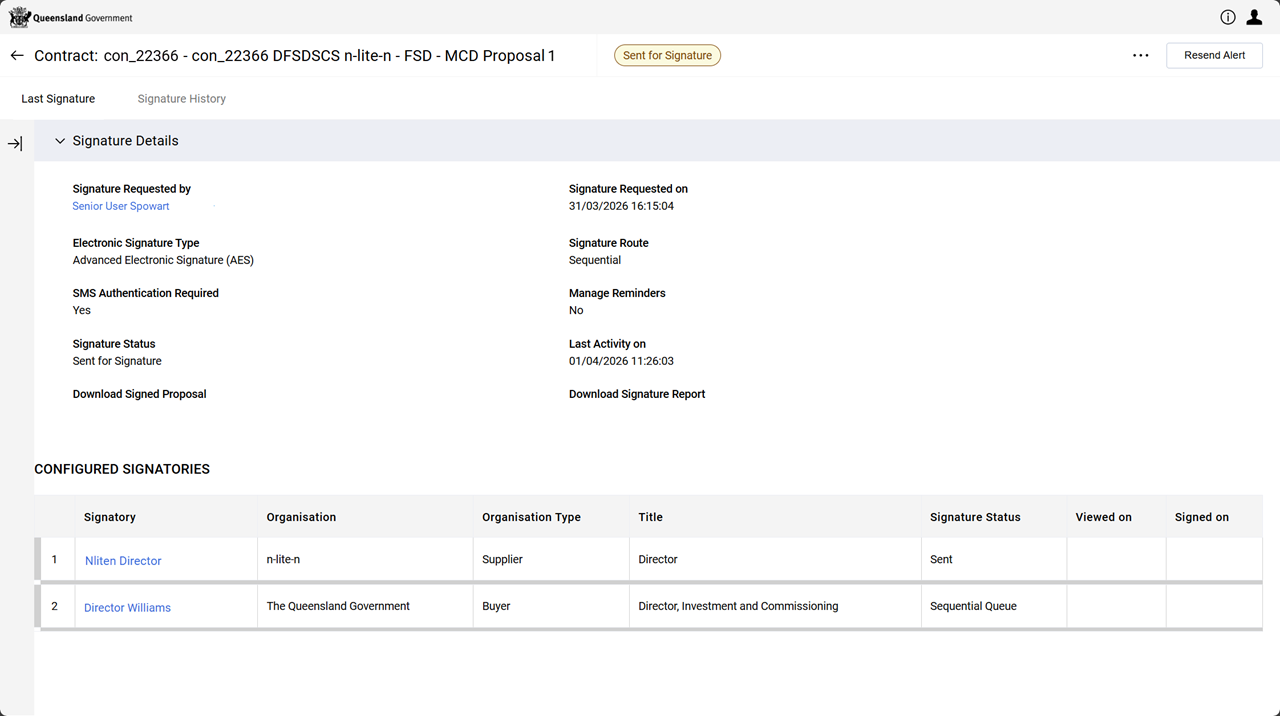
This is useful to help determine the status of signatories involved in electronically signing the MCD.
-
From the contract's Contents Management tab > MCD (Sent for Signature) page, scroll to the bottom of the page.
-
Click Sent for Signature hyperlink.
View the eSigned contract and Docusign certificate
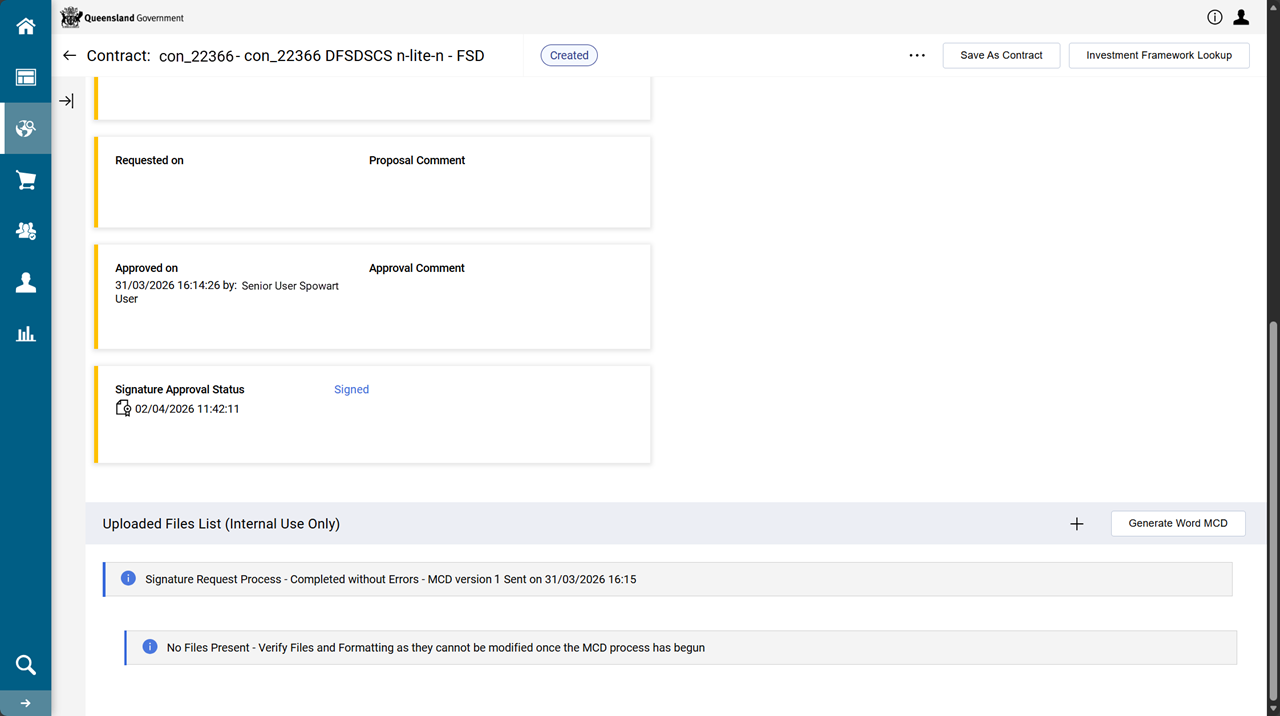
This is useful to locate the fully executed contract (MCD) (including the date of execution) and the signature report (Docusign's certificate of completion).
-
From the contract's Contents Management tab > MCD page, scroll to the bottom of the page.
-
Click Signed hyperlink.